

Document Lists
Document lists let you group individual documents together and request them all at once from multiple partners.
What are Document Lists?
A document list is a collection of documents that are commonly requested together. Examples:
- “Q1 2025 Compliance Package” - Quarterly required documents
- “KYC Onboarding Documents” - Everything needed to onboard a new partner
- “Annual Audit Documents” - Year-end compliance requirements
- “Vendor Risk Assessment” - Documents needed for third-party risk review
When to use lists vs. individual requests:
- Use lists for recurring needs or standardized packages
- Use individual requests for one-off or unique document needs
Creating and Managing Lists
To create a document list:
- Navigate to Documents → Lists
- Click Create List
- Enter:
- Name - What this package is for (e.g., “Q1 Compliance Package”)
- Description - Additional context
- Click Create
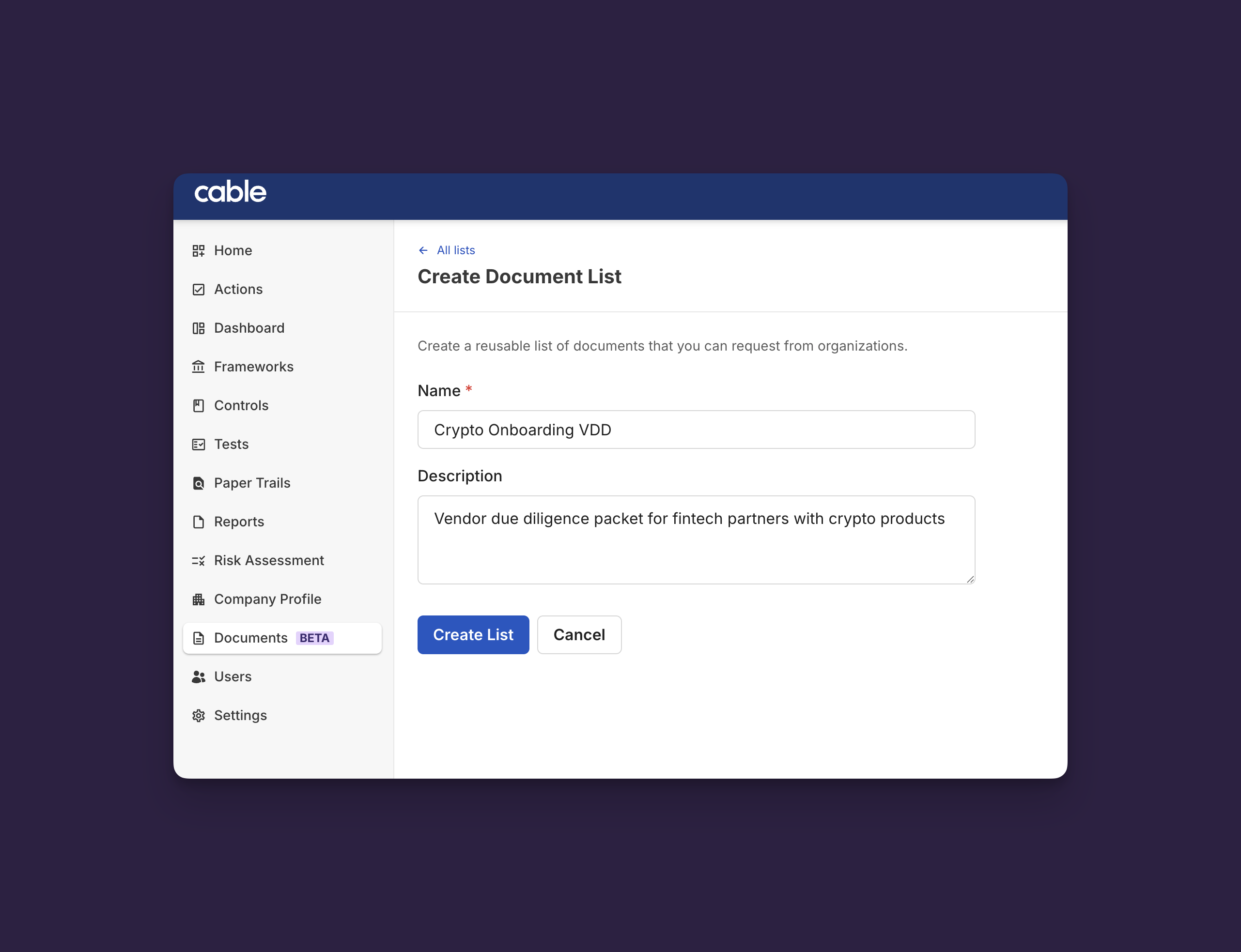
✅ Success: You’ll see “List created - Your document list has been created successfully.”
Adding Documents to Lists
After creating a list:
- Click on the list to open details
- Click Add Documents
- Select templates from your Documents Library
- Click Add to List
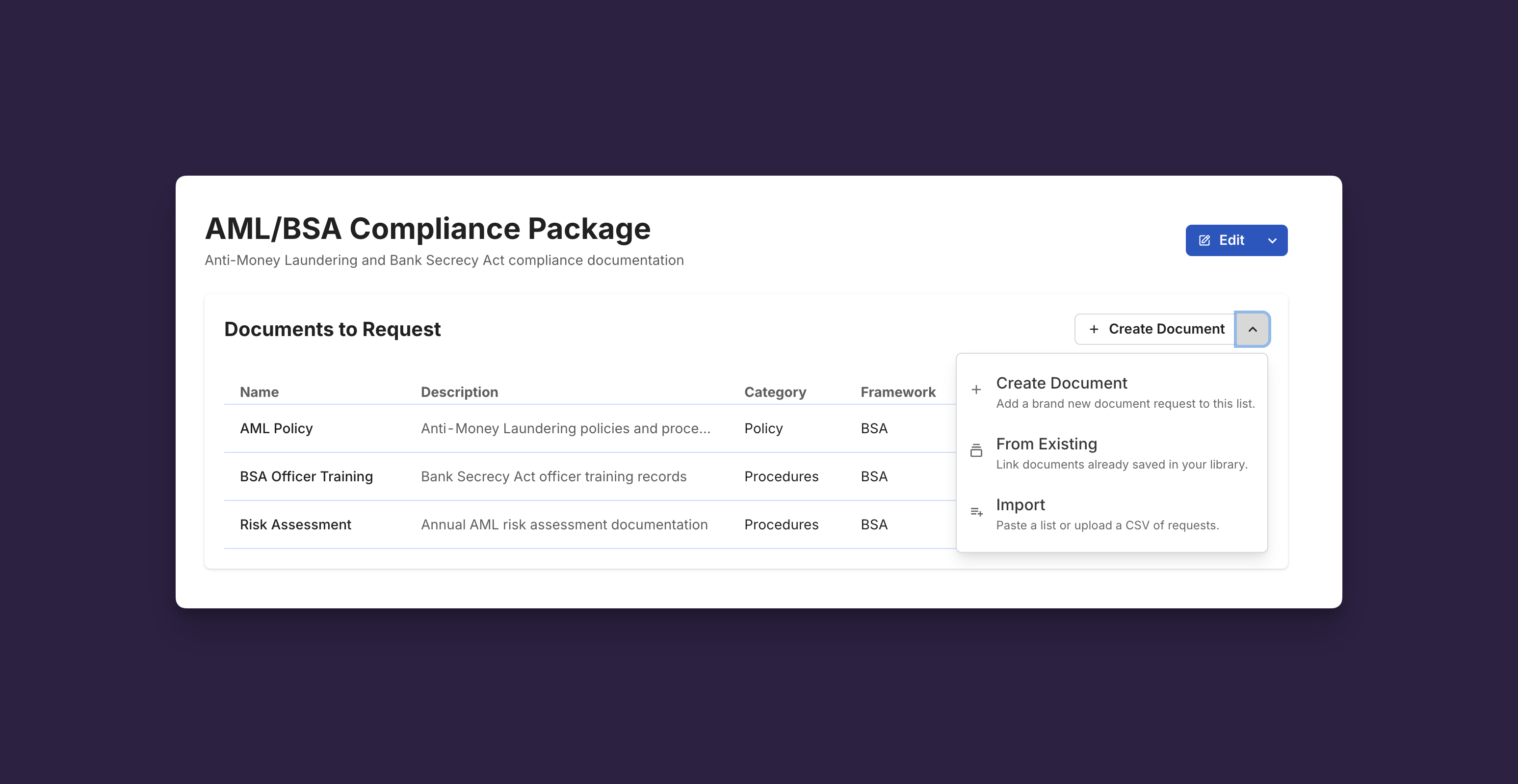
You can add the same document to multiple lists. For example, “AML Policy” might be in both “Onboarding Documents” and “Annual Review Documents.”
💡 Tip: Create lists for recurring needs like quarterly reviews or annual audits. Once set up, you can request the entire package from multiple organizations with just a few clicks.
Requesting from Multiple Organizations
This is where document lists shine - request an entire package from many partners at once.
To send a bulk request:
- Navigate to Documents → Lists
- Click on the list you want to send
- Click Request from Organizations
- Select which partner organizations should receive these requests
- Review the summary: “Will create up to [X] requests ([Y] documents × [Z] organizations)”
- Click Send Requests
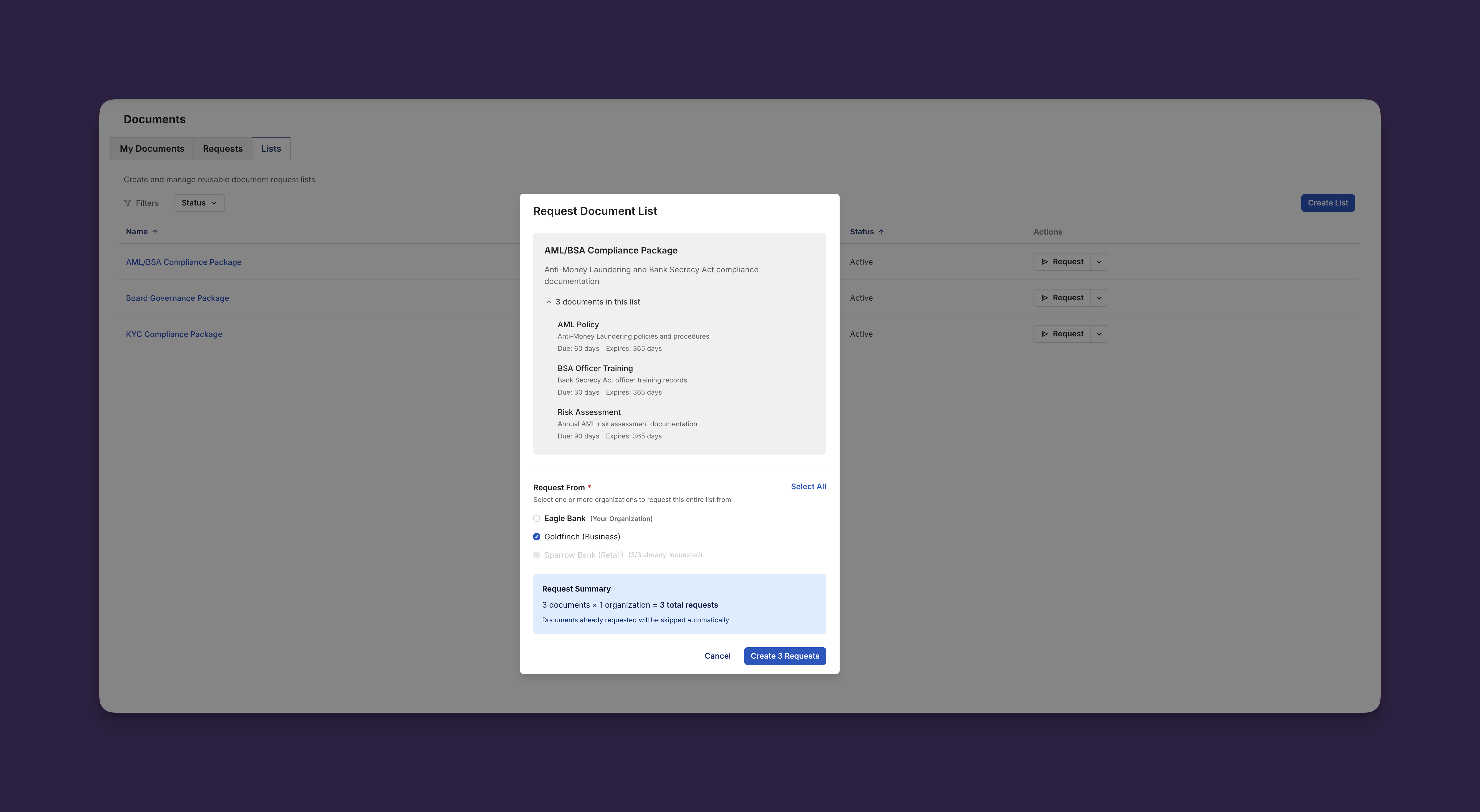
What happens:
- Cable creates individual requests for each document × organization combination
- Each request has its own due date calculated from the list
- If a partner already has an active request for a document, Cable skips it
- Partners receive notifications about their new requests
✅ Success: You’ll see “Created [X] new request(s) ([Y] already existed)” if some requests already existed, or just “Created [X] request(s) successfully” if all were new.
💡 Tip: You can safely re-run a document list request. The system will only create new requests for organizations that don’t already have active requests for those documents.
Example: You create a “Q1 Compliance” list with 10 documents and send it to 20 partners:
- First run: Creates 200 requests (10 × 20)
- If you run it again immediately: Creates 0 new requests (all already exist)
- If you add 5 new partners and re-run: Creates 50 new requests (10 × 5 new partners)