

My Documents
My Documents is where you organize your own compliance documents.
Creating Documents
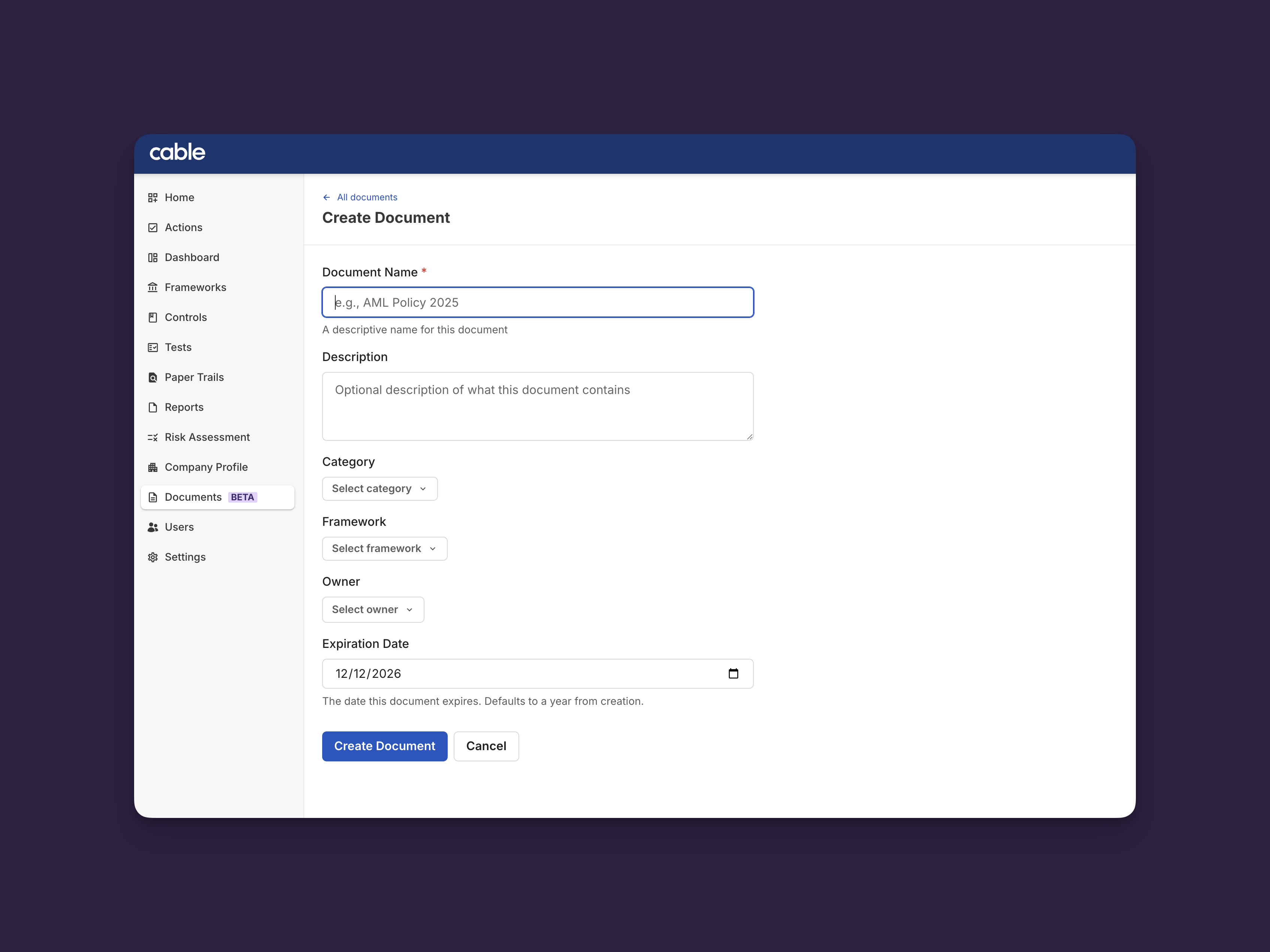
To create a document:
- Navigate to My Documents
- Click Create Document
- Fill in the document details:
- Name - Clear, descriptive name (e.g., “AML Policy 2025”)
- Description - Additional context about the document
- Category - Select from Policy, Procedure, Governance, IT/Security, HR, Finance, or Other
- Expiration Date (optional) - Set when the document needs renewal
- Owner (optional) - Assign someone responsible for maintaining this document
- Upload your files by dragging and dropping or clicking to browse
- Click Create
✅ Success: You’ll see “Upload successful - Documents have been uploaded successfully” and your document will appear in the Library tab.
💡 Tip: Build your document library proactively before requests arrive. This makes responding to external requests faster and ensures you always have up-to-date documents ready to share.
Managing Document Versions
Documents in Cable maintain a complete version history. Every time you upload new files, a new version is created.
When to create a new version (upload new files):
- Policy is updated with new regulatory requirements
- Document content changes
- Files are added or replaced
When to update metadata (change details about your document):
- Changing the document name
- Updating the description
- Adjusting expiration date
- Reassigning the owner
Adding a New Version
To upload a new version of an existing document:
- Navigate to Documents → Library
- Click on the document you want to update
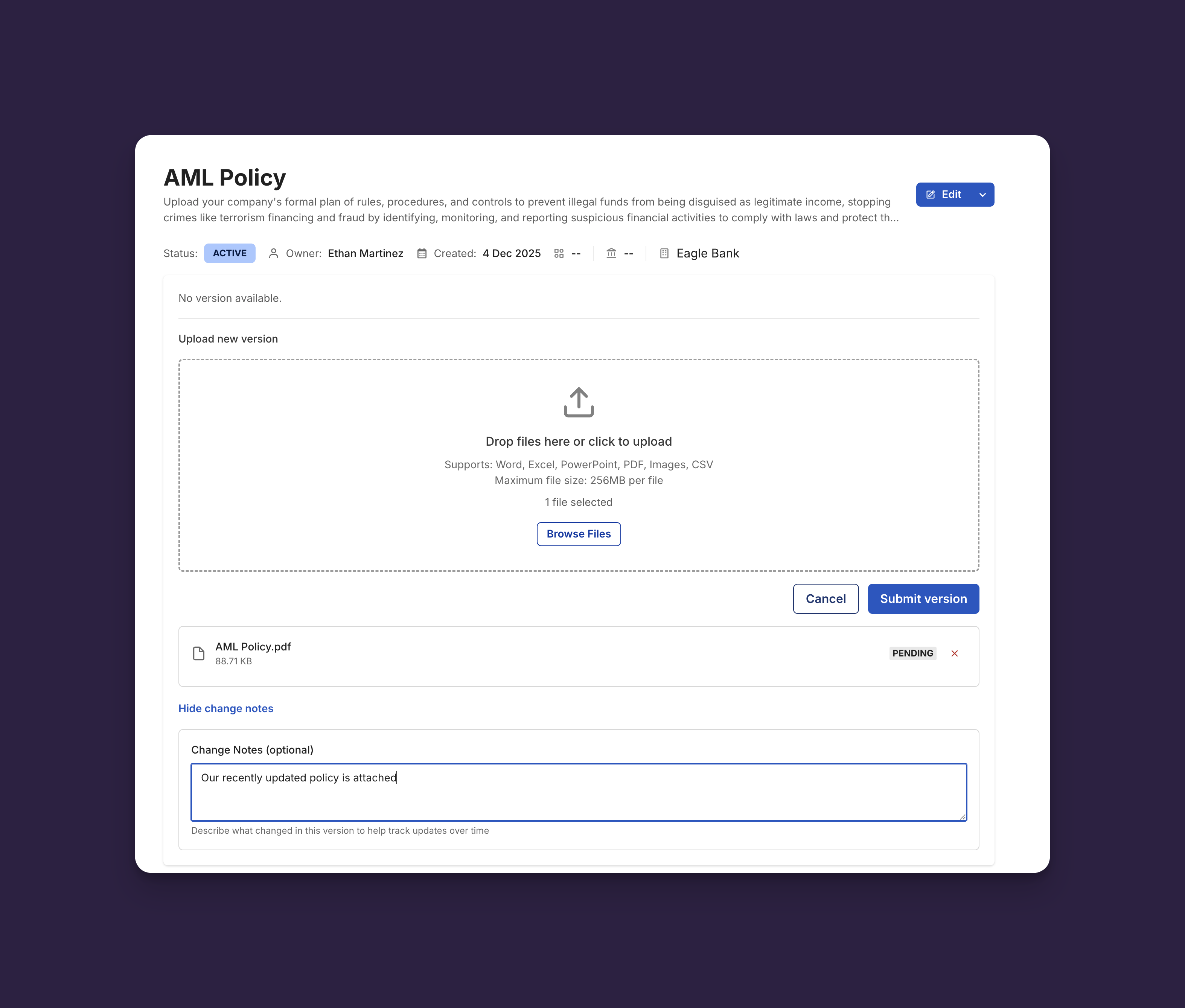
- Click Upload New Version
- Upload your updated files
- Add Version Notes describing what changed (e.g., “Updated Section 3.2 per new regulations”)
- Click Submit Version
✅ Success: You’ll see “Version uploaded - New document version has been uploaded successfully.” All linked document requests automatically show the new version.
💡 Tip: Add descriptive version notes when updating documents. This creates a clear audit trail for compliance purposes and helps partners understand what changed.
Viewing Version History
To see all versions of a document:
- Click on a document in your Library
- Click Show other versions
- Each version shows:
- Upload date and time
- Who uploaded it
- Version notes
- Attached files
All versions are preserved forever for compliance and audit purposes.
Organizing Your Library
Using Categories
Categories help you organize and filter documents. Choose the category that best fits:
- Policy - Governance policies (AML, KYC, Privacy, etc.)
- Procedure - Standard operating procedures
- Governance - Board minutes, governance documents
- IT/Security - Technical security documentation
- HR - Human resources documents
- Finance - Financial statements, audit reports
- Other - Everything else
💡 Tip: Use consistent naming conventions for documents across your organization (e.g., “AML Policy 2025” rather than “policy_final_v2_FINAL”). This makes searching and filtering much easier.
Assigning Owners
Assign an owner to make someone responsible for keeping a document up-to-date:
- Open the document detail page
- Click Assign Owner
- Select a user from your organization
- They’ll be notified of the assignment
✅ Success: You’ll see “[User name] is now the owner.”
Setting Expiration Dates
For time-sensitive documents like annual policies:
- Set an Expiration Date when creating or editing a document
- Cable will mark documents as EXPIRED after this date
- Use this as a reminder to review and update the document
Archiving Documents
To hide old or outdated documents without deleting them:
- Click the three dots on a document’s actions
- Select Archive
- Confirm the action
Archived documents:
- Can still be viewed by filtering for archived items
- Preserve all version history
- Can be unarchived later if needed with the same process
✅ Success: You’ll see “Document archived - The document has been archived successfully.”